
Back to Blogs
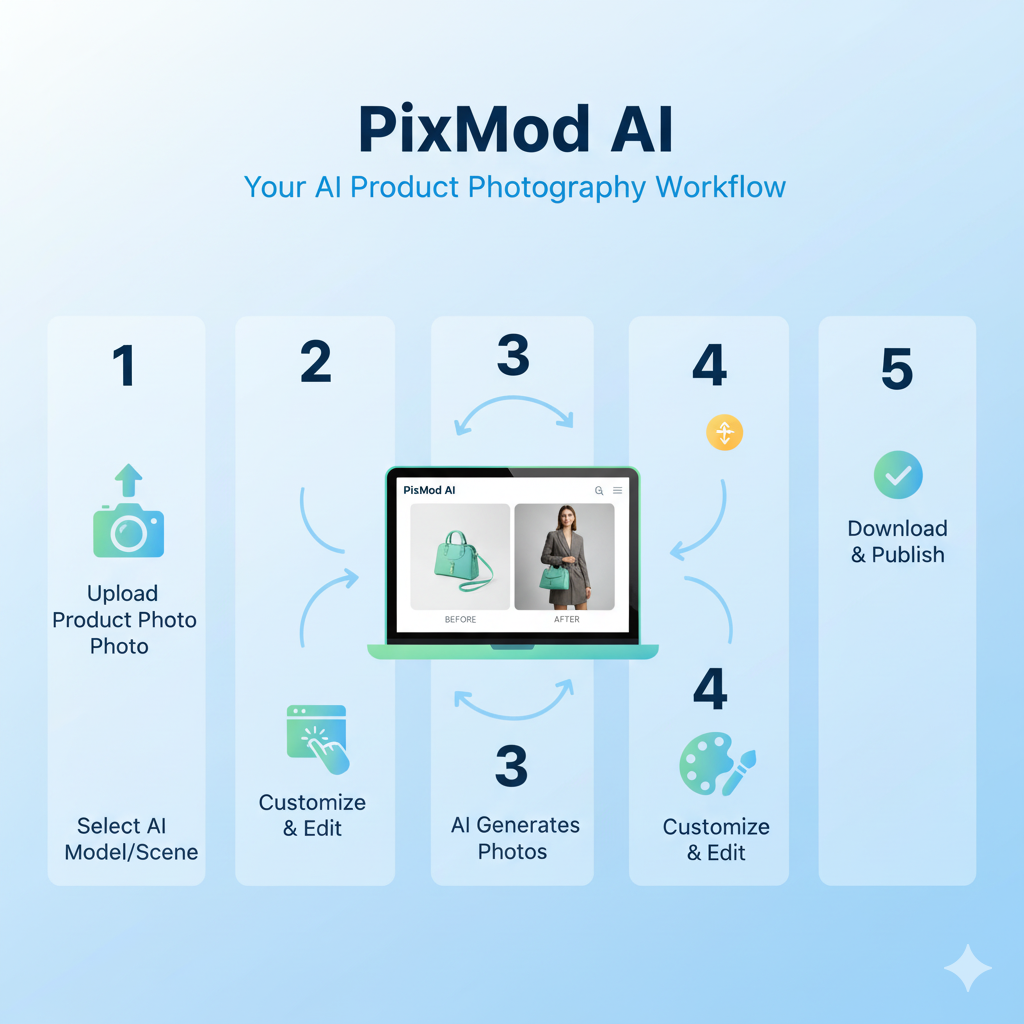
Complete PixMod AI Tutorial: Create Professional Model Photos in 5 Minutes
New to AI product photography? This step-by-step PixMod AI tutorial shows you how to create stunning professional model photoshoots in just 5 minutes, even with zero photography experience.
Getting Started: Visit PixMod AI and access the intuitive interface designed for beginners. The platform simplifies professional photography into two essential fields: Title and Description. No technical skills, photography knowledge, or design experience required.
Step 1 - Prepare Your Product Photo: Start with a clear product image. Flat-lay photos, mannequin shots, or simple white background images work perfectly. Even smartphone photos produce excellent results. Ensure good lighting and the product is centered. Remove clutter from backgrounds for best AI processing.
Step 2 - Upload to PixMod AI: Click the upload button and select your product image. The platform accepts JPG, PNG, and common image formats. Upload speed is instant, and the AI begins analyzing your product immediately—detecting colors, textures, fabric types, and design elements.
Step 3 - Enter Title Details: In the Title field, specify your product type and desired outcome. Examples: "Women's floral summer dress on model" or "Men's leather jacket casual photoshoot." Be specific about product category, style, and preferred presentation. Clear titles help AI generate more accurate results.
Step 4 - Add Description Preferences: The Description field is where customization happens. Specify model characteristics (gender, ethnicity, body type, age range), background settings (urban, studio, outdoor, beach), pose styles (standing, walking, sitting), lighting preferences (natural, studio, golden hour), and overall mood (casual, elegant, sporty). More detail produces better-targeted results.
Step 5 - Generate and Review: Click generate and watch AI create your professional photoshoot in real-time. Processing takes 30-60 seconds. Review results—PixMod AI ensures accurate product representation with proper fit, color matching, realistic fabric draping, and natural shadows. If adjustments needed, modify Title or Description and regenerate instantly.
Step 6 - Download and Deploy: Download high-resolution images ready for immediate use. Export options include web-optimized sizes for faster loading and print-quality resolution for advertisements. Use images across e-commerce platforms, social media, email marketing, and print materials.
Pro Tips for Best Results: Use high-quality product photos for optimal AI processing. Experiment with different Description details to find your brand aesthetic. Generate multiple variations for A/B testing. Save successful Title and Description combinations for consistent brand styling. Update images seasonally by changing background descriptions without new product photos.
Common Mistakes to Avoid: Don't use blurry or poorly lit product photos. Avoid vague descriptions—specificity improves results. Don't skip the Description field—it controls crucial customization. Review generated images carefully for any needed adjustments before publishing.
Time and Cost Savings: Traditional photoshoots require days of coordination and thousands in costs. PixMod AI delivers professional results in 5 minutes for a fraction of the price. Create content daily, launch products faster, and scale your visual marketing effortlessly.
Ready to create your first AI photoshoot? Visit PixMod AI now and transform product photos into professional model images using simple Title and Description inputs.